**No Credit Card Required for Free Trail
Step-by-step: Install using the Downloader short code 7725380
1) Confirm your device supports APK installs
Works on most:
- Android TV / Google TV boxes
- Chromecast with Google TV
- NVIDIA Shield
- Android phones/tablets
(Does not work on Apple TV / iPhone/iPad without different methods.)
Android TV / Google TV / Chromecast with Google TV
1) Enable unknown sources for Downloader
- Go to Settings
- Apps → Security & Restrictions (or Privacy / Security depending on device)
- Enable Unknown sources (or Install unknown apps)
- Turn ON for Downloader
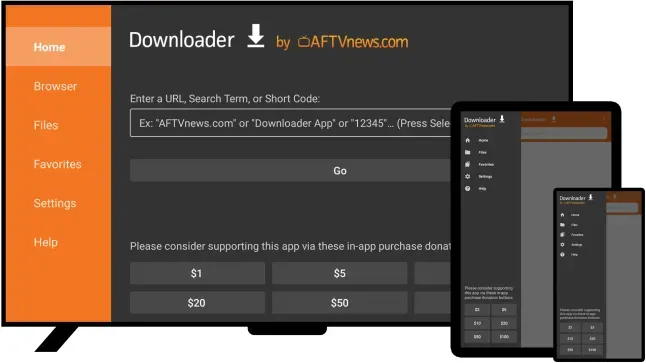
2) Install Downloader
- Open Google Play Store
- Search Downloader
- Install
3) Enter the short code + install
- Open Downloader
- Enter code 7725380 (or use the code option/menu)
- Download → Install
- Delete installer file after (recommended)
C) Android Phone / Tablet
1) Allow unknown app installs
(Exact wording varies by Android version.)
- Open Settings
- Go to Security (or Apps → Special access)
- Find Install unknown apps
- Turn Allow for the app you’ll use to download (Downloader, Chrome, etc.)
2) Download + install
- If you’re using Downloader, enter 7725380, download, then tap the file to install.
- If using a browser link instead, download the APK, open it, Install.
Common troubleshooting
“App not installed”
- Ensure you downloaded the correct APK for the device architecture (most modern boxes are ARM64).
- Delete the downloaded APK and re-download.
- Make sure you have enough storage (clear a few apps or cache).
“Blocked for your safety” / “Permission denied”
- Re-check Install unknown apps is enabled for Downloader (or your browser).
Downloader can’t find the code option
- Some versions show code entry as a button/menu; others only show a URL field.
If the code entry option isn’t visible, your best backup is a direct download URL mapped to the same file.
Blank screen / won’t open
- Force stop the app, clear cache:
Settings → Apps → MyStreamVision Direct App → Force Stop → Clear Cache - Reboot the device.